
A direct IoT link that sends the thermal view from your gun to your helmet lets you clear corners with less exposure, then move with intent. This guide explains what the system is, how IOTS (IOL25 configuration) pairs with DNVS-14 Pro, and how to set it up so your team gains speed and control without extra clutter.

What IoT Means and System Architecture
Here, IoT (Internet of Things) refers to a wireless data link between an IOTS thermal sight and a DNVS-14 Pro helmet monocular. The sight sends a live thermal stream to the helmet, creating a shared picture that supports safer angles and cleaner entries.
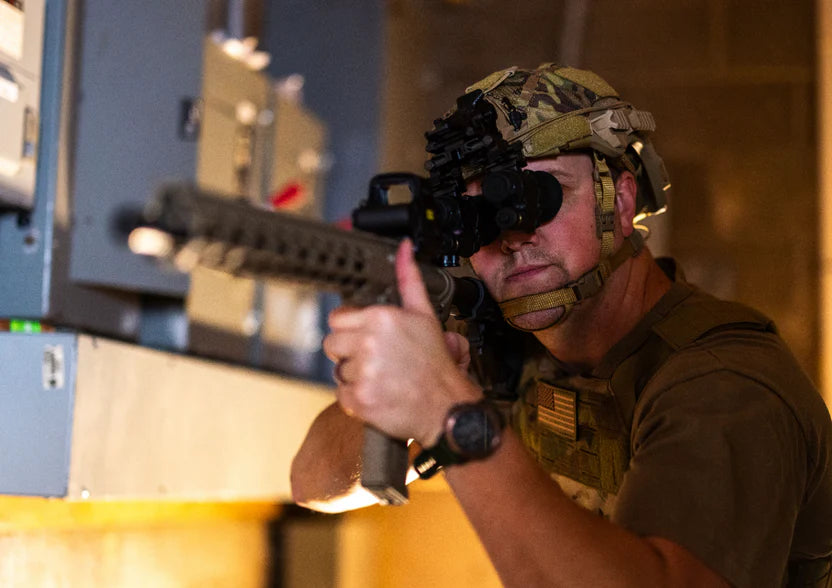
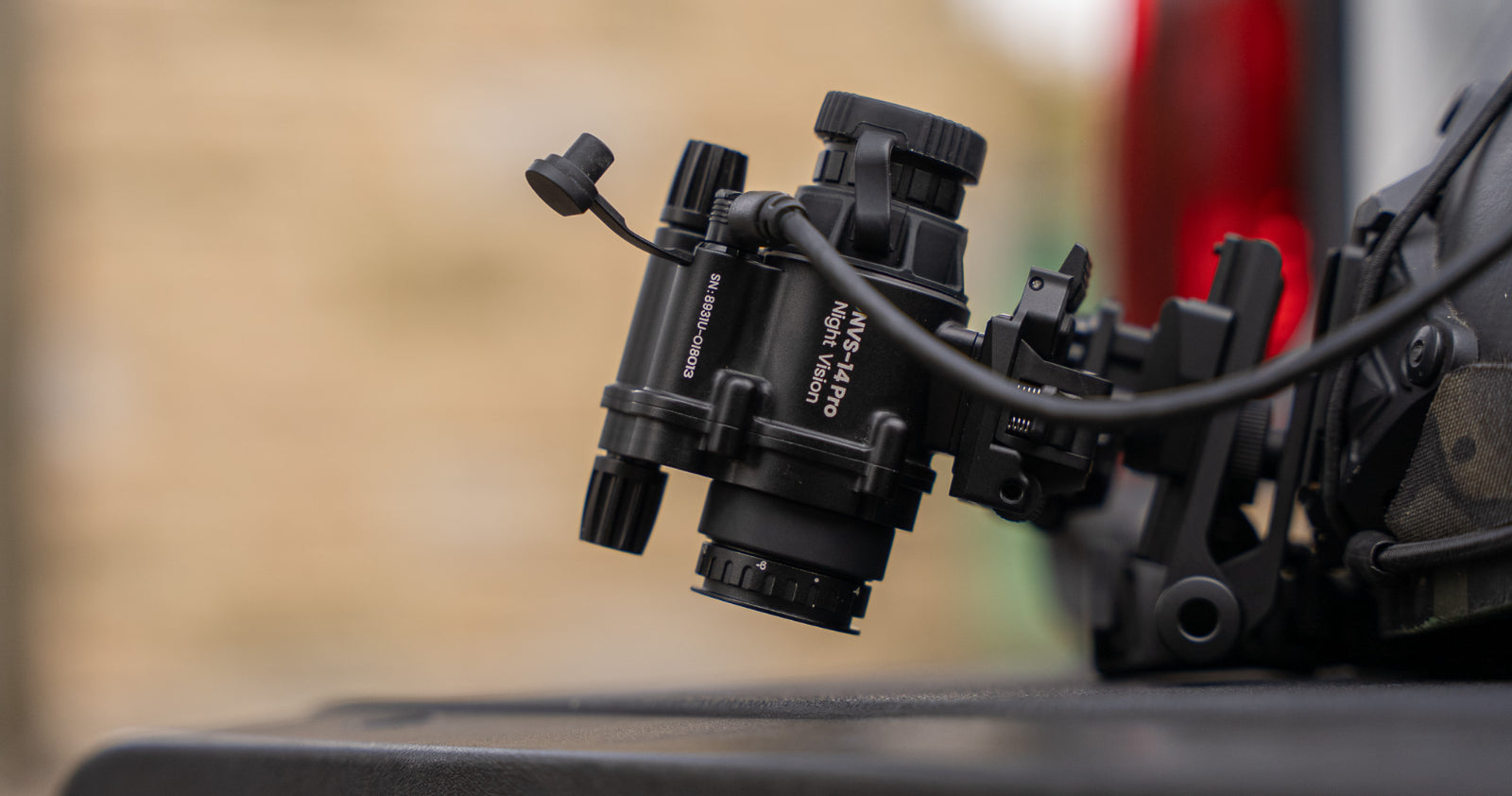
In practice, this functions as a corner-shot viewing system: the image lands on the headborne device for real-time viewing. The IOL25 thermal rifle sight acts as the sender, supporting real-time thermal image transmission to helmet-mounted displays via an IoT link. The DNVS-14 Pro serves as the receiver, displaying a real-time thermal feed from the thermal sight via IoT link.
The IoT function also supports the IOL25 and DNVS-14Pro connecting with mobile devices, so you can operate them by using the INFITAC App on your smartphone or tablet. Through the INFITAC App, you can access live preview, file transfer, parameter control, and firmware updates over Wi-Fi, which helps with setup and after-action review.
[article_products_1]
Why It Matters for CQB and Corner-Shooting
A helmet-linked view reduces exposure. You can lean less of your face and chest into the opening while still reading heat across the frame. This corner-shot capability is a core benefit of the IOTS series to the DNVS-14 Pro link.
Teams also gain tempo—and coordination. The point sees heat at the threshold while a partner tracks the same image. That shortens identification time in smoke, fog, or mixed lighting, and the IOTS series is built for real-time collaboration in these conditions.
Control improves because your eyes stay up on the helmet display, not down on a weapon screen or handheld device.

How to Connect IOTS to DNVS-14 Pro Step by Step
A smooth first link starts with a simple pre-check. Power both devices, and place them within a reasonable range. You can refer to the following steps to complete the connection.
Set up the sender
Enter the IOL25 menu, select the IoT option, rotate the Menu button to enable, then short-press the Menu button to confirm and return.
Set up the receiver
On DNVS-14 Pro, open the IoT menu and enable it. Enter IoT Settings and start a search. After a brief scan, pick the listed sender and connect. The helmet display should switch to the interconnection view once the link is established.
Operate the view
Switch the Photo button to toggle between PIP and FULL. In FULL mode, the interconnected IOL25 feed fills the display. In PIP mode, a picture-in-picture window appears with a bottom-right thumbnail showing the IOL25 panoramic view. Keep PIP for general movement when you want continuous situational context; switch to FULL when inspecting specific details.
If discovery fails
Repeat the search, reduce obstacles, and move the device to an area with no or fewer Wi-Fi signals. Move a little closer for the initial handshake, then return to your working distance.

Field Use Cases
The IoT function is especially useful for a solo operator at doorways, hallway ends, and stair corners. You can hold a tighter sliver of exposure while still seeing a complete thermal image. This setup illustrates the core corner-viewing advantage of the IOL25 and DNVS-14 Pro pairing.
Link stability depends on clean conditions and a steady routine. Pair the devices before movement. Keep a clear path between sender and receiver when possible. In heavy concrete interiors, establish the link at closer range first, then move back to your working position.
When connected via IoT, the thermal image can be transmitted to the DNVS-14 Pro display:
- PIP mode keeps your base night vision view while showing the thermal image in an inset.
- FULL mode displays the entire thermal image on the night vision screen, ideal for a final check before movement.
Build a short routine for muscle memory: enable IoT on both devices, confirm the view, switch between PIP and FULL, and restore your preferred palette.
Add a Second Set of Eyes at the Corner
Enhance corner-viewing capability and threshold awareness with a helmet-linked thermal feed; you no longer need to lean out to check a doorway. Mount the IOL25 to observe, stream thermal video to the DNVS-14 Pro, and switch instantly between PIP and full-screen views. Change palettes on the fly, keep your head up, and maintain awareness before you step through. Once it becomes second nature, integrate it into your entry routine and verify settings during regular gear checks.
IoT Professional System: How the IOL25 and DNVS-14 Pro Work Together
To deliver this seamless experience, both devices are engineered for performance and reliability.
Keep selection practical. The IOL25 steps up to a 384×288 thermal sensor with a 12 µm pixel pitch, NETD≤20 mK, 25 mm F1.0 lens, and 50 Hz. Those design choices aim at a clear, fluid image for indoor movement or low-light operations. Choose it if those characteristics fit your needs and engagement ranges.
On the helmet side, the DNVS-14 Pro offers up to a 100 Hz refresh rate, true day-and-night operation, a 45° FOV, and 20h battery life, providing image quality comparable to Gen3. The compact and lightweight design and an independent smart battery pack make it more comfortable to wear. These details matter because a smooth, low-latency helmet image supports natural head movement during a pie or threshold hold.
Together, the IOL25 and DNVS-14 Pro create a seamless IoT professional system that gives you a second set of eyes, improves situational awareness, and lets you move confidently in low-light environments.
FAQs
Q1. Does the IoT link require internet or cellular service?
No. The IOTS to DNVS-14 Pro connection is a local wireless link; no router, SIM, or data plan required.
Q2. Does helmet viewing affect my weapon zero?
No. The link only mirrors the sight's view. Confirm zero on a range after any firmware or mount changes later.
Q3. When should I use PIP mode or FULL mode on the DNVS-14 Pro?
PIP mode is useful during general movement, as it preserves overall situational awareness while keeping the thermal feed visible in a smaller window. FULL mode is better suited for inspecting details or performing a final check before committing to movement.
Q4. Can I control settings or review files through a mobile device?
Yes. Both the IOTS and DNVS-14 Pro can connect to the INFITAC App for parameter adjustment, live preview, file transfer, and firmware updates. Mobile control is best used during setup, configuration, or after-action review—not during live movement.


Leave a comment
All comments are moderated before being published.
This site is protected by hCaptcha and the hCaptcha Privacy Policy and Terms of Service apply.